Getting Started
Sourcemeta One operates on a two-phase architecture: indexing and serving. During the indexing phase, the service scans, analyses, and compiles your schemas. This preprocessing phase creates a highly optimised cache that enables blazing-fast schema retrieval and evaluation during the serving phase.
As you will see in this guide, setting up Sourcemeta One is straightforward:
- Create a configuration file that sets up your instance exactly as you want it
- Create a
Dockerfilethat extends the slim official base images and indexes your schemas at build time - Run the optimised service
Hello World
Got two minutes to spare and Docker installed on your machine? Brilliant! Let's get a sample instance of Sourcemeta One up and running locally in no time.
Our First Schema
Every good story starts with a character, so let's create a simple person
schema. Pop this into a file called schemas/person.json:
{
  "$schema": "https://json-schema.org/draft/2020-12/schema",
  "title": "Person",
  "description": "A simple schema for describing a person",
  "type": "object",
  "required": [ "name", "age" ],
  "properties": {
    "age": { "type": "integer", "minimum": 0 },
    "name": { "type": "string" }
  },
  "additionalProperties": false
}
Tip
We know that working with schemas can be a bit of a maze—authoring, maintaining, debugging, and testing them all have their quirks. For a smoother ride, we highly recommend the open source Sourcemeta JSON Schema CLI as your trusty sidekick, and do bookmark our Learn JSON Schema site for those moments when you need a quick reference on JSON Schema specifics.
Configuring the Service
Now for the magic ingredient: a configuration file that
tells Sourcemeta One which schemas to feast upon. Whilst the full configuration
documentation covers loads more options, we'll keep things simple here. We're
setting our url to http://localhost:8000 (where we'll serve our schemas),
adding a touch of personality with a custom name in the html section, and
creating our very first schema collection called my-first-collection. This
collection will gobble up our person schema by pointing to the schemas
directory we just created. Save this as one.json alongside your schemas
folder:
{
  "url": "http://localhost:8000",
  "extends": [ "@self/v1" ],
  "html": {
    "name": "My First Registry"
  },
  "contents": {
    "my-first-collection": {
      "title": "My First Schema Collection",
      "description": "I will create more schemas over time here",
      "path": "./schemas"
    }
  }
}
Note
The @self/v1 built-in collection provides the HTTP API
endpoints and the JSON Schemas that describe them (mounted at
/self/v1/schemas). In a future release, the HTTP API will only be
available if you explicitly include @self/v1 in the extends array.
We recommend adding it now to avoid disruption later.
Writing a Dockerfile
Time to put it all together! Create a Dockerfile with these contents. We're
extending the official sourcemeta/one image from GitHub
Packages, copying
our configuration file and schemas directory into the container, and then
running the indexing process with the sourcemeta command. Simple as that!
FROM ghcr.io/sourcemeta/one:5.1
COPY one.json .
COPY schemas schemas
RUN sourcemeta one.json
Running Locally
Right, we're all set! Let's build our Docker image (we'll call it
my-first-registry) and fire up Sourcemeta One. The service serves on port
8000 by default, so we'll expose that:
$ docker build --tag my-first-registry . --file Dockerfile
$ docker run --publish 8000:8000 my-first-registry
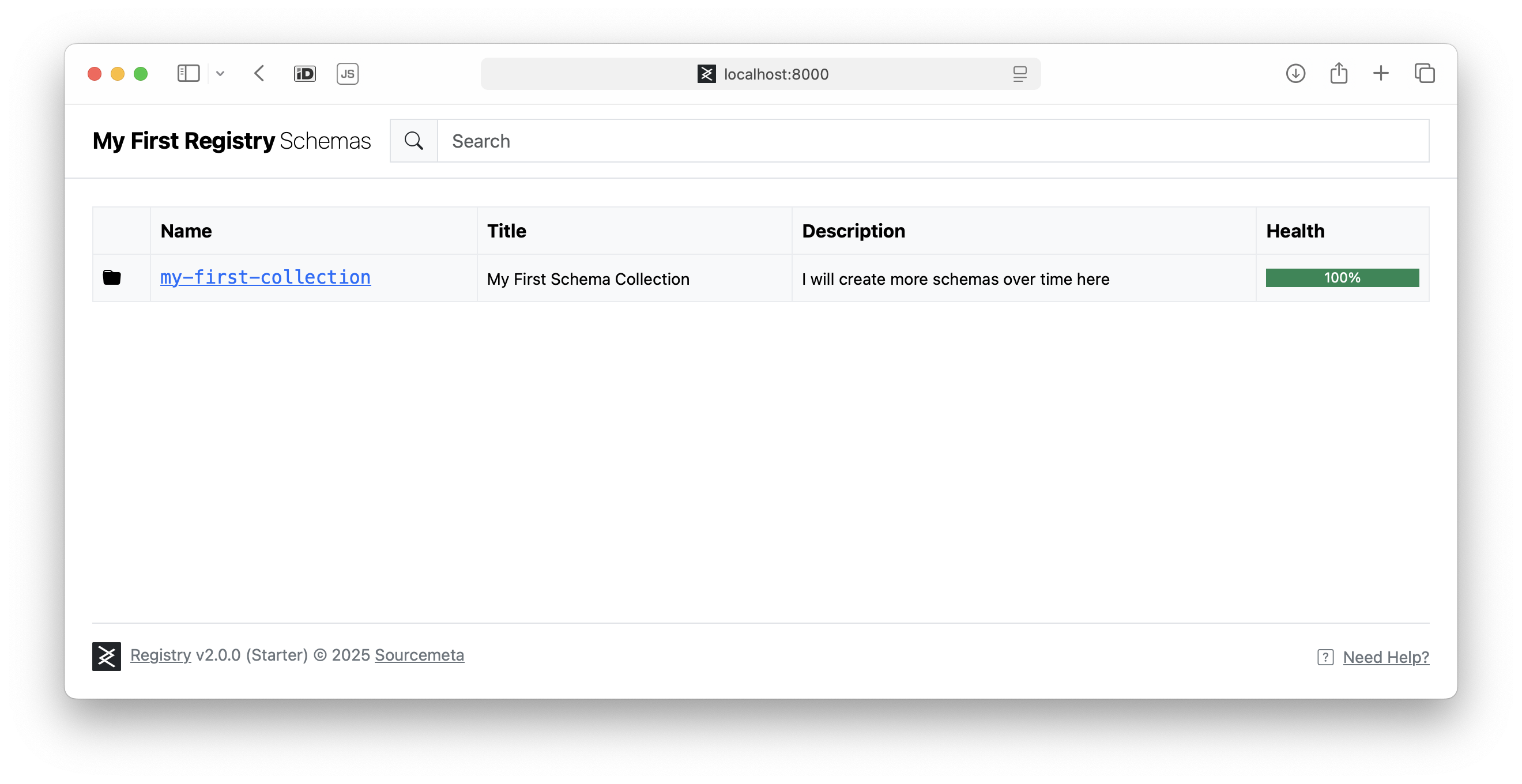
Now head over to http://localhost:8000 in your favourite web browser, and you'll be greeted by your very own instance:
Ingesting Schemas with $id
In the example above, our person schema had no $id property. Sourcemeta One
assigned it an identifier based on the filename and the registry URL, resulting
in http://localhost:8000/my-first-collection/person. But what happens when you
want to ingest a schema you don't control that already declares its own $id
pointing to a different domain?
For example, imagine you want to host a third-party schema whose $id is
https://example.com/schemas/v2/address on your own registry at
http://localhost:8000. The schema has its own canonical identifier, but you
want to serve it alongside your own schemas without modifying its contents.
This is a common scenario when building a registry that aggregates schemas from
multiple sources.
The baseUri collection option solves this. It
tells Sourcemeta One which base URI the schemas in a collection originally
belong to, so it can correctly rebase their identifiers onto your registry URL.
Let's say the third-party schema lives locally at
vendor/example/v2/address.json:
{
  "$schema": "https://json-schema.org/draft/2020-12/schema",
  "$id": "https://example.com/schemas/v2/address",
  "title": "Address",
  "type": "object",
  "required": [ "street", "city" ],
  "properties": {
    "street": { "type": "string" },
    "city": { "type": "string" },
    "postcode": { "type": "string" }
  }
}
To ingest it, configure a collection with a baseUri that matches the prefix
of the schema's original $id. The indexer will strip this base and remap the
remainder onto your registry URL, prepended by the collection key:
{
  "url": "http://localhost:8000",
  "extends": [ "@self/v1" ],
  "html": {
    "name": "My Registry"
  },
  "contents": {
    "external-schemas": {
      "title": "External Schemas",
      "path": "./vendor/example",
      "baseUri": "https://example.com/schemas"
    }
  }
}
With this configuration, the schema's $id
(https://example.com/schemas/v2/address) is made relative to baseUri
(https://example.com/schemas), yielding the suffix v2/address. The
collection key external-schemas is then prepended, producing the final
registry path http://localhost:8000/external-schemas/v2/address.
Without baseUri, the default base is your top-level url
(http://localhost:8000). The schema's $id would not be relative to that
base, and the indexer would report an error.
Tip
For a real-world example, take a look at the configuration file that powers
schemas.sourcemeta.com, which ingests
schemas from many third-party sources using baseUri. Find the
configuration file
here
Next Steps
Congratulations! You've just built your first Sourcemeta One instance in under two minutes (told you so!). Whilst our single-schema service might seem modest, you've got the perfect foundation to experiment and expand.
Ready to take things further? Take a look at our more comprehensive getting-started guide. Also explore our integrations which cover ways on which you can pull and use the schemas in a growing amount of programming languages and applications.
We also recommend exploring the full range of options in the configuration file, exploring the HTTP API, and having a peek at schemas.sourcemeta.com to see what a fully-fledged public instance looks like in the wild.
Using Docker
Sourcemeta One is exclusively distributed as Docker images published to GitHub Packages. We provide multi-architecture images supporting both x64 and arm64 platforms, ensuring compatibility across different systems whilst maintaining consistent behaviour. Docker is the only officially supported method for running the service and we do not provide platform-specific binaries for individual operating systems.
To run Sourcemeta One, create a Dockerfile that extends our base image and
follows the build pattern shown below:
# See https://github.com/orgs/sourcemeta/packages?repo_name=one
FROM ghcr.io/sourcemeta/one:<version>

# (2) Copy your configuration file and schemas to the *working directory*
# Avoid copying files to other paths outside the working directory, as
# the indexer will not automatically clean them up for you if so!
# See https://one.sourcemeta.com/configuration/
COPY one.json .
COPY schemas schemas

# (3) Run the build step on your input configuration file
# The indexer will automatically remove the input schemas from the
# working directory to keep the image lean
RUN sourcemeta one.json
The build process follows a straightforward pattern: extend the base image, copy your configuration and schema files into the working directory, and run the indexing command. The indexer automatically removes source schemas after processing to keep the final image size minimal.
Environment Variables
The service can be configured using the following runtime environment variables.
| Name | Default | Description |
|---|---|---|
SOURCEMETA_ONE_PORT |
8000 |
The HTTP port on which the service will listen on |
Using Docker Compose
For more complex deployments or when integrating Sourcemeta One alongside other services, Docker Compose provides a convenient orchestration method. The following example demonstrates a basic setup that builds your image and exposes it on the desired port:
services:
  one:
    build:
      # The Dockerfile that extends the Sourcemeta One base image
      dockerfile: Dockerfile
      context: .
    environment:
      # Set your desired port
      - SOURCEMETA_ONE_PORT=8000
    ports:
      # Expose the ports accordingly
      - "8000:8000"
This configuration builds your custom image using the Dockerfile in the
current directory and maps the container's port to your host system. You can
extend this setup to include additional services, networks, or volumes as
needed for your specific deployment requirements.